How to Fund Your SMM Panel Account Using Binance Pay in 2026: Complete Step-by-Step Guide
Published on: May 12, 2026
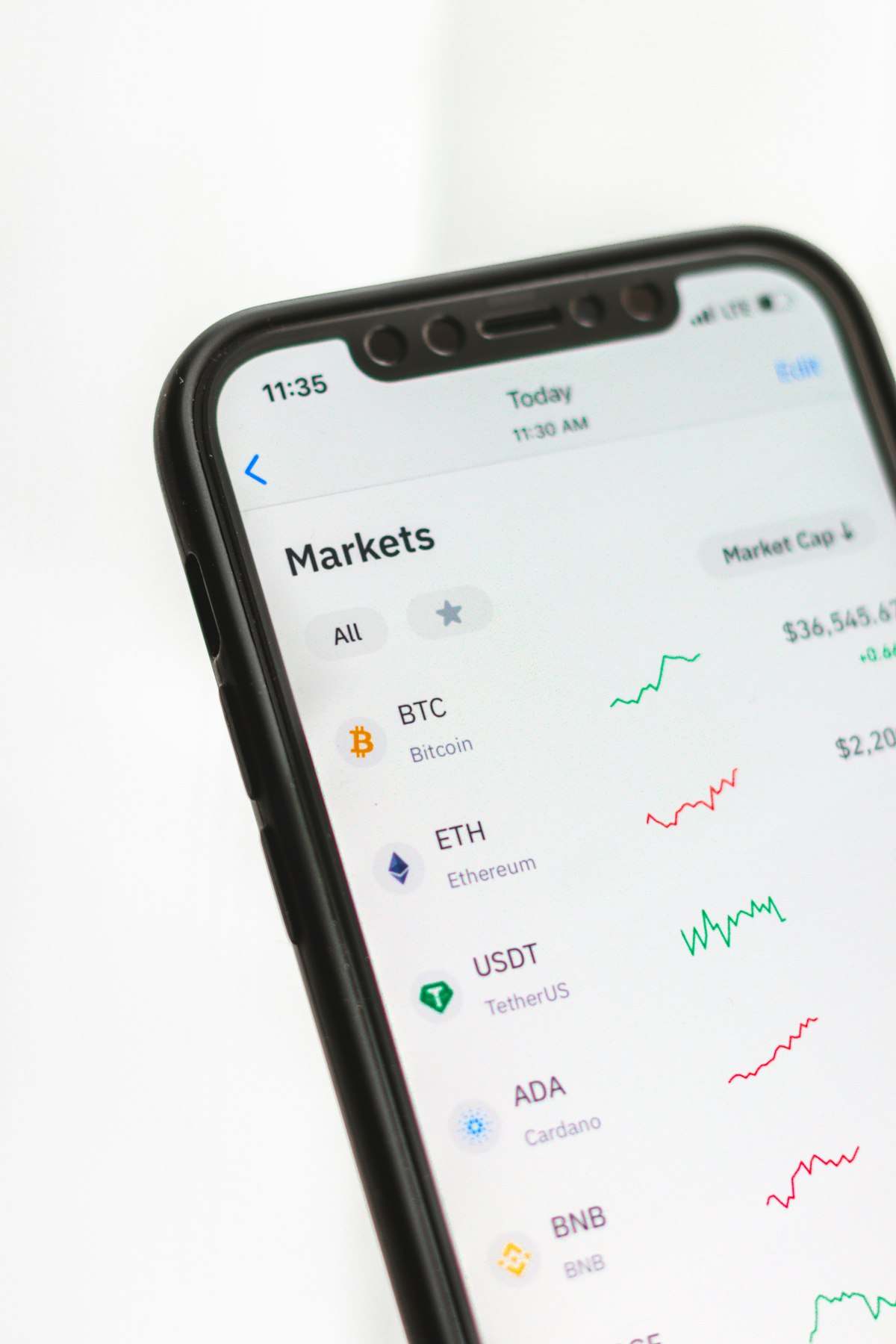
Binance Pay has rapidly become one of the most popular payment methods for SMM panel users across the Arab world, South Asia, and globally in 2026. As Binance's native peer-to-peer payment solution, Binance Pay allows you to send cryptocurrency — including USDT, BNB, and other major assets — directly from your Binance account to merchants and service providers with zero transaction fees, instant confirmation, and an intuitive mobile-first interface that makes crypto payments as easy as any conventional payment method.
For creators, brands, resellers, and social media managers who already use Binance for cryptocurrency exchange and trading, Binance Pay eliminates the friction of external wallet management — you fund your SMM panel account directly from the same Binance app you already use, without needing to set up a separate wallet or navigate external blockchain transactions manually.
In this comprehensive step-by-step guide, we walk through everything you need to know about using Binance Pay to fund your SMMUAE.co account — from initial Binance account setup to confirming your SMM panel balance update. Whether you are a first-time Binance user or an experienced crypto user discovering Binance Pay for the first time, this guide covers every step of the process clearly and completely.
What Is Binance Pay and Why Use It for SMM Panel Funding?
Binance Pay Explained
Binance Pay is a contactless, borderless cryptocurrency payment technology built into the Binance app and Binance web platform. It allows Binance users to send and receive supported cryptocurrencies to any compatible merchant or individual, with no transaction fees charged by Binance, instant or near-instant settlement, and a simplified QR code or payment link interface that makes crypto payments as user-friendly as scanning a QR code with any standard payment app.
Think of Binance Pay as the crypto equivalent of paying with a digital wallet like Apple Pay or Google Pay — except it works globally, with any supported cryptocurrency, without requiring a bank account or credit card.
Key Advantages of Binance Pay for SMM Panel Deposits
- Zero Binance transaction fees: Unlike sending crypto from Binance to an external wallet (which incurs withdrawal fees), Binance Pay transfers within the Binance ecosystem are completely fee-free. Every dollar you intend to deposit arrives in full — no fee deductions.
- Instant settlement: Binance Pay transfers are confirmed almost immediately — typically within seconds to minutes — unlike standard blockchain transactions that require multiple confirmations. Your SMM panel balance updates faster than with any other payment method.
- No external wallet needed: Fund your SMM panel directly from your Binance account balance without needing to manage a separate self-custody wallet, remember additional seed phrases, or navigate complex blockchain interfaces.
- Multiple currency options: Binance Pay supports USDT (most common for SMM panels), BUSD, BNB, Bitcoin, Ethereum, and dozens of other assets. USDT is recommended for SMM panel funding due to its price stability.
- Mobile-first simplicity: The Binance Pay interface in the Binance app is designed for quick, intuitive payments — scan a QR code or enter a payment ID and you are done.
- Available across the Gulf and globally: Binance operates in the UAE, Saudi Arabia, Pakistan, India, Egypt, and virtually every market where SMMUAE.co serves clients — making it a truly universal SMM panel funding solution.
What You Need Before You Start
Before following the step-by-step process below, ensure you have the following in place:
- A verified Binance account with completed identity verification (KYC). Binance Pay requires KYC completion to activate full payment functionality. If you have not yet completed verification, do so through the Binance app before attempting to use Binance Pay.
- Sufficient USDT (or other supported currency) balance in your Binance account. Ensure you have enough funds to cover your intended SMM panel deposit amount. If you need to purchase USDT first, use Binance's Buy Crypto feature before proceeding.
- An active SMMUAE.co account. If you have not yet registered, create your free account here — it takes under 60 seconds.
- The Binance app installed on your mobile device (iOS or Android) for the most seamless Binance Pay experience, or access to the Binance web platform if you prefer desktop.
Part 1: Setting Up Binance Pay (First-Time Users)
Step 1: Download and Open the Binance App
Download the official Binance app from the Apple App Store or Google Play Store. Search for "Binance" — the official app is published by Binance Inc. and has the official Binance logo. Avoid downloading from any unofficial source.
Step 2: Create and Verify Your Binance Account
If you do not yet have a Binance account:
- Open the app and tap "Register."
- Enter your email address and create a strong password.
- Complete the email verification step by clicking the link sent to your inbox.
- Complete identity verification (KYC) — required for Binance Pay access. Navigate to Profile → Identification and follow the prompts to submit your ID document and complete face verification. KYC approval typically takes minutes to a few hours.
Step 3: Activate Binance Pay
- In the Binance app, tap the "Pay" icon in the bottom navigation bar (represented by a wallet or pay icon, depending on your app version).
- If prompted, complete any additional verification steps to activate the Pay feature.
- Once activated, you will see your Binance Pay interface showing your receive QR code, payment history, and send options.
Step 4: Fund Your Binance Account With USDT
If you do not have USDT in your Binance account yet:
- Tap "Buy Crypto" in the Binance app.
- Select USDT as your target currency.
- Enter the amount you want to purchase.
- Choose your payment method — card, bank transfer, or peer-to-peer (P2P) trading.
- Complete the purchase. Your USDT will appear in your Binance Spot Wallet once the transaction is processed.
For Gulf users, P2P trading on Binance is often the most convenient way to purchase USDT using local payment methods (bank transfer, STC Pay, Fawry, etc.) without card processing fees. Navigate to "Buy Crypto" → "P2P" to access peer-to-peer USDT purchasing.
Part 2: Finding the Binance Pay Option on SMMUAE.co
Step 5: Log Into Your SMMUAE.co Account
Open your browser and navigate to smmuae.co. Log in with your registered email and password. If this is your first visit, create your free account before proceeding.
Step 6: Navigate to the Add Funds Section
From your SMMUAE.co dashboard, locate the "Add Funds," "Deposit," or "Balance" section. This is typically accessible from:
- The main navigation menu (look for "Add Funds" or a wallet icon)
- Your account balance display area (usually showing your current balance with an "Add Funds" button)
- Your account profile dropdown menu
Step 7: Select Binance Pay as Your Payment Method
On the Add Funds page, you will see a list of available payment methods. Look for "Binance Pay" in the cryptocurrency or payment options section. Click or tap to select it.
If you do not immediately see Binance Pay listed, look within the broader "Cryptocurrency" payment section — Binance Pay may be listed under crypto options alongside USDT TRC20, USDT ERC20, and Bitcoin options.
Step 8: Enter Your Deposit Amount
Enter the amount you wish to deposit in USD. Since USDT is a stablecoin pegged 1:1 to the US dollar, the amount you enter in USD equals the USDT amount you will send. For example, a $100 deposit requires 100 USDT.
Note any minimum deposit requirements displayed on the page and ensure your intended deposit meets that threshold.
Part 3: Completing the Binance Pay Transfer
Step 9: Retrieve the SMMUAE.co Binance Pay Payment Details
After selecting Binance Pay and entering your amount, SMMUAE.co will display one or more of the following payment details:
- A QR code — the most convenient payment method for mobile Binance app users
- A Binance Pay ID — a unique identifier you enter manually in the Binance Pay send interface
- An email address registered with Binance — for sending to a Binance-registered recipient directly
Keep this page open — you will need this information in the next steps.
Step 10: Open Binance Pay in Your Binance App
- Open the Binance app on your mobile device.
- Tap the "Pay" icon in the bottom navigation bar to open Binance Pay.
- Tap "Send" to initiate an outgoing payment.
Step 11: Enter the SMMUAE.co Payment Details
If paying by QR code (recommended):
- In the Binance Pay Send interface, tap the QR scan icon.
- Point your camera at the QR code displayed on the SMMUAE.co Add Funds page.
- Binance Pay will automatically read the payment details and pre-populate the recipient information.
If paying by Binance Pay ID or email:
- In the Binance Pay Send interface, tap the search or manual entry option.
- Enter the Binance Pay ID or email address displayed on the SMMUAE.co Add Funds page.
- Verify that the recipient name displayed matches what you expect before proceeding.
Step 12: Select USDT and Enter Your Payment Amount
- On the payment setup screen, select USDT as your payment currency from the asset selection menu.
- Enter the exact amount to send — this should match the deposit amount you entered on SMMUAE.co (e.g., 50 USDT for a $50 deposit).
- Verify the amount one more time before proceeding — Binance Pay transfers are instant and irreversible once confirmed.
Step 13: Review the Payment Summary
Binance Pay will display a full payment summary before you confirm. Verify:
- Recipient: Confirm the recipient name/ID matches SMMUAE.co's payment details
- Currency: USDT (confirm this is correct — not BNB or another asset unless specifically instructed)
- Amount: Confirm the exact USDT amount matches your intended deposit
- Fee: Should display as zero (Binance Pay charges no fees for transfers within the Binance ecosystem)
Step 14: Confirm and Authenticate the Payment
- Tap "Confirm" or "Send" to proceed.
- Complete any security authentication Binance requires — this may include your PIN, fingerprint, face ID, or 2FA code depending on your security settings.
- The payment is processed immediately upon authentication confirmation.
Step 15: Save Your Transaction Reference
After the payment is confirmed, Binance Pay will display a transaction confirmation screen showing:
- Transaction ID or reference number
- Amount sent
- Timestamp
- Recipient confirmation
Screenshot this confirmation and save it — if you ever need to follow up with SMMUAE.co support about a deposit, this reference number is the key piece of documentation needed for rapid resolution.
Part 4: Confirming Your SMMUAE.co Balance Update
Step 16: Return to SMMUAE.co and Check Your Balance
Return to your SMMUAE.co dashboard and refresh the page. For Binance Pay deposits, balance updates are typically near-instantaneous — appearing within seconds to minutes of the payment confirmation. You should see your account balance increased by the amount you deposited.
Step 17: Troubleshooting If Balance Has Not Updated
If your balance has not updated after 10 minutes:
- Verify that the Binance Pay payment shows as "Completed" (not "Pending") in your Binance Pay transaction history.
- Confirm the recipient details were correct by reviewing your Binance Pay transaction record.
- Contact SMMUAE.co support through live chat or WhatsApp with your Binance Pay transaction ID and the amount sent. Our support team will manually verify and credit the deposit promptly.
Binance Pay vs. Other SMM Panel Funding Methods: Quick Comparison
- Binance Pay: Zero fees, near-instant, mobile-convenient, no external wallet needed. Best for Binance users who want the simplest crypto payment experience.
- USDT TRC20 (external wallet): Very low fees ($0.10–$0.50), 1–3 minute confirmation, requires separate wallet management. Best for users who want full self-custody control.
- Credit/Debit Card: Convenient but 2–5% processing fees, occasional international declines. Best for users without crypto access who need immediate funding.
- Bank Transfer: Low fees for large amounts but 1–5 day processing time. Not suitable for time-sensitive SMM campaign funding.
- PayPal: Convenient but not universally available in Arab markets and carries 3–5% fees. Limited use case for Gulf region SMM panel users.
Managing Your SMMUAE.co Balance Efficiently With Binance Pay
Now that you have mastered the deposit process, here are best practices for managing your SMMUAE.co balance effectively using Binance Pay as your primary funding method:
- Maintain a standing balance: Keep a minimum balance in your SMMUAE.co account equal to your expected weekly service spend. Running out of balance mid-campaign disrupts service delivery and can cause order delays.
- Top up before high-demand periods: Before major campaigns (Black Friday, UAE National Day, product launches), ensure your balance is fully funded before the campaign starts — you do not want to pause a viral content boost to add funds.
- Use Binance Pay for frequent small deposits: The zero-fee advantage of Binance Pay makes it ideal for frequent smaller deposits — you can top up $20 at a time without losing any funds to fees, which is not practical with fee-bearing payment methods.
- Keep your Binance account funded in USDT: Maintain a USDT reserve in your Binance Spot Wallet so you can deposit to SMMUAE.co at any time without first needing to purchase crypto. This is especially important for resellers who need to fund orders promptly for clients.
Security Best Practices for Binance Pay SMM Panel Transactions
- Enable all Binance security features: Two-factor authentication (2FA), withdrawal whitelist, and anti-phishing code all protect your Binance account from unauthorized access.
- Verify SMMUAE.co payment details directly from the official site: Always access payment details from the official SMMUAE.co website (smmuae.co) — never from links shared in messages, emails, or social media that you did not initiate.
- Never share your Binance account credentials: No legitimate service provider — including SMMUAE.co — will ever ask for your Binance login credentials, 2FA codes, or account access. Anyone requesting these is attempting fraud.
- Double-check amounts before confirming: Binance Pay transactions are instant and irreversible. Take an extra 5 seconds to verify the amount is correct before tapping confirm.
Frequently Asked Questions: Funding SMM Panel With Binance Pay
Does Binance Pay work in the UAE and Saudi Arabia?
Yes — Binance Pay is available to verified Binance users in the UAE, Saudi Arabia, and most Gulf countries. Ensure your Binance account is fully KYC-verified to access Binance Pay functionality in your region.
What cryptocurrencies can I use with Binance Pay for SMM panel deposits?
USDT is the recommended currency for SMM panel deposits due to its price stability. Binance Pay also supports BNB, Bitcoin, Ethereum, and many other assets. Check SMMUAE.co's accepted Binance Pay currencies on the Add Funds page before initiating a transfer in a non-USDT currency.
Are there any fees for using Binance Pay to fund my SMM panel?
Binance charges zero fees for Binance Pay transfers. SMMUAE.co does not add any deposit processing fees for Binance Pay transactions. The full amount you send is the full amount credited to your account balance.
What is the minimum deposit amount using Binance Pay?
Check the current minimum deposit amount on the SMMUAE.co Add Funds page — minimums are typically kept very accessible (often $1–$5 equivalent). Binance Pay itself supports very small transfers with no minimum threshold from Binance's side.
Can I use Binance Pay on desktop, or only on the Binance mobile app?
Binance Pay is accessible on both the Binance mobile app and the Binance web platform (binance.com). The mobile app is recommended for QR code scanning. On desktop, use the Pay ID or email input method to complete your transfer.
How do I get USDT on Binance if I am new to crypto?
In the Binance app, tap "Buy Crypto" and select USDT. Choose your payment method — card for instant purchase, bank transfer for lower fees, or P2P trading for region-specific local payment options. For Gulf users, P2P trading with local payment methods like STC Pay, bank transfers, or cash deposit is often the most convenient and cost-effective option.
Conclusion: The Simplest Way to Fund Your SMM Growth — Binance Pay
Binance Pay has transformed the SMM panel funding experience in 2026 — making crypto deposits as simple as scanning a QR code, completely free of transaction fees, and nearly instant in settlement. For the millions of Binance users across the Arab world and globally who already manage their crypto through the Binance ecosystem, it is the obvious choice for keeping your SMMUAE.co balance funded and your social media growth campaigns running without interruption.
Whether you are a creator investing in your first follower package, a brand building Gulf market social presence, or a reseller managing dozens of client orders daily, Binance Pay gives you the fastest, cheapest, and most convenient path from your funds to your SMM panel balance.
Register on SMMUAE.co today, set up your Binance Pay connection, and experience the most seamless SMM panel funding method available in 2026. Your next social media growth campaign is one QR code scan away.
For official Binance Pay guidance and documentation, visit Binance's official Pay FAQ and for broader crypto payment security best practices, explore Binance Academy's cryptocurrency security guide.